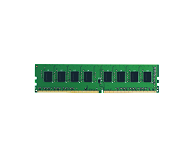
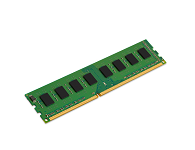
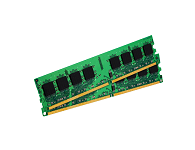
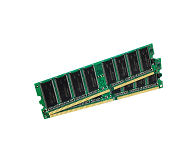
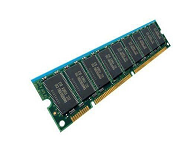
184-Pin DDR Memory Module Installation Guide

The instructions on this page provide general installation and handling information for 184-Pin DDR memory modules. These
instructions are intended to be used in conjunction with your model specific owner's manual.
Note: Before touching electronic components, make sure you are properly grounded. By wearing a wrist
strap (or using some other type of static control device), you can prevent static electricity stored on your body or clothing
from damaging your installation. Anti-static straps are available for purchase from our Web site, alternatively please contact
our sales department.
- The first thing to do is make sure the computer is shut down.
- Please ensure that the power supply switch is turned off, you may leave the power supply plugged in while the switch is turned off to provide an active ground. However if your power supply does not have a switch then unplug the computer to make sure that it does not power on accidentally. Please discharge any static electricity by touching an unpainted metal surface before handling any computer components. Frying a chip with static electricity is a rare occurrence, but still possible.
- Remove the computer's cover following the instructions in the model-specific owner's manual.
- Locate the memory expansion sockets on the computer's motherboard. If all the sockets are full, remove smaller capacity
modules to allow room for higher capacity modules.
- Once you've discharged your static electricity, pick up the memory chip by its top or sides. Don't touch the silver or
gold contacts at the bottom, because even a little oil from your finger can eventually interfere with the connection.
Regardless of the type of memory you have, it will only go into the empty memory slot one way, so look at the notches in the
contacts and line them up so the partitions in the RAM sockets fit in the grooves.

- Insert the module into an available expansion socket. Press the module into position, making certain the module is
completely seated in the socket. The ejector tabs at each end of the socket will automatically snap into the locked
position. Repeat this procedure for any additional modules you are installing. The ejector tabs shown in the illustration
are used to remove a module. By pushing outward on the ejector tabs, the module will pop-up from the socket and it can then
be removed.
- For most installations, DDR modules can be installed in any available expansion slot. Other installations may require
the memory to be installed in a particular sequence based on the modules capacity. Check your owner's manual to determine
the correct installation sequence for your configuration.
- Turn on the computer and follow the instructions in your computer owner's manual that describe the steps necessary to
allow your computer to recognise the newly installed memory. (Most computers will automatically recognize the additional
memory installed).
Technical Support:
Are you having trouble installing your new RAM?
Is your new memory not working?
Click this link to check out our: Memory Installation &
Troubleshooting Tips
4 All Memory's Technical Support Program goes beyond the lifetime warranty, routine calls and questions. As memory
specialists for many years, we want to provide the most comprehensive level of service and support in the industry.
Our Customer Support representatives can answer your questions and give you information on system/memory configurations,
upgrade options, product specifications, compatibility and other technical topics or issues.
4 All Memory's Customer Service Team is also here to provide help when you need it-everything from installation assistance
to memory troubleshooting, repair or replacement. If you have a question related to memory please try our
Frequently Asked Questions or for installation assistance our
Memory Installation & Troubleshooting Tips. If you still have
a need, please call 800-566-3727 and a customer support representative will be available to help you.
« Memory Installation Guides